Select a model in GPT for Word
GPT for Word supports a range of models that you can use with your AI work in Word.
The available models depend on:
The API keys set for your current space. GPT for Word gives you access to a default set of built-in models. To access additional models, set an API key for one or more AI providers.
The API endpoints set up for your current space. To access even more models, set up a connection to an Azure OpenAI API endpoint or any OpenAI-compatible API endpoint.
The model settings for your current space. Space owners and admins can control which models are available in GPT for Word.
Select a built-in model
-
Open a Microsoft Word document.
-
On the ribbon, select Home > GPT for Excel Word.
 info
infoIf GPT for Excel Word is not visible on the ribbon, or if it's grayed out, select Home > Add-ins > My Add-ins > GPT for Excel Word. Learn more.
-
Open the model switcher.

-
Under Built-in models, select a model.
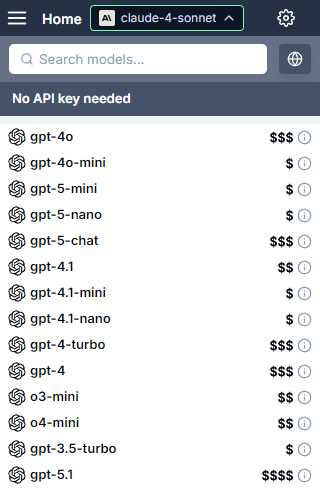
GPT for Word now uses the selected model to generate responses.
Select a connected model
-
Open a Microsoft Word document.
-
On the ribbon, select Home > GPT for Excel Word.
infoIf GPT for Excel Word is not visible on the ribbon, or if it's grayed out, select Home > Add-ins > My Add-ins > GPT for Excel Word. Learn more.
-
Open the model switcher.
-
Under Connected models, select a model.
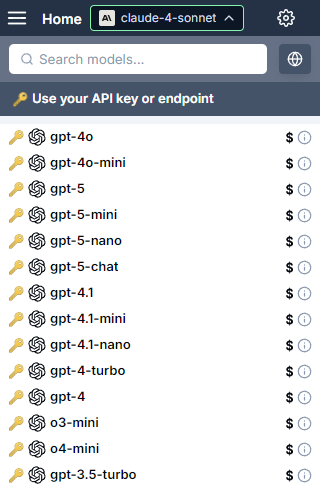
GPT for Word now uses the selected model to generate responses.
What's next
Learn more about models: