Manage API keys for GPT for Sheets
Using API keys offers several benefits:
-
More models. Access a wider range of models from a bigger pool of AI providers than what is available without an API key.
-
More control. Monitor and manage AI usage and costs directly on the AI provider's platform.
-
Improved privacy. We do not log inputs and outputs when you use a connected model. For more information, see our security and privacy FAQ.
-
Reduced costs. If you're on a pay-as-you-go space, using an API key reduces costs. You pay the model usage fees directly to the AI provider, while paying a reduced service fee for GPT for Work.
Create API keys
Make sure your keys belong to an organization or project with the following rate limits:
-
RPM (requests per minute) ≥ 1,000
-
TPM (tokens per minute) ≥ 1,000,000
The actual limits required depend on your workload requirements.
To create an API key, go to the AI provider's platform and follow their instructions:
-
OpenAI Platform for GPT models and fine-tuned models
-
Anthropic Console for Claude models
-
DeepSeek Platform for DeepSeek models
-
Google AI Studio for Gemini models
-
Mistral AI for Mistral models
-
Perplexity for Perplexity models
-
xAI Cloud Console for xAI models
Set API keys
You set API keys for your space in the GPT for Work dashboard. The keys you set for a Google account space apply to GPT for Sheets.
The API keys you set work for all users in your space. Users automatically have access to models associated with the keys, but only the space owner (you) and admins can set and manage the keys. Billing for a key reflects its usage by all users.
-
Create an API key or request an API key from your AI provider platform admin. Learn more.
-
Sign in to the GPT for Work dashboard with your Google account.
-
In the sidebar, select AI provider keys.
-
In the AI providers list, click the provider whose API key you want to set.
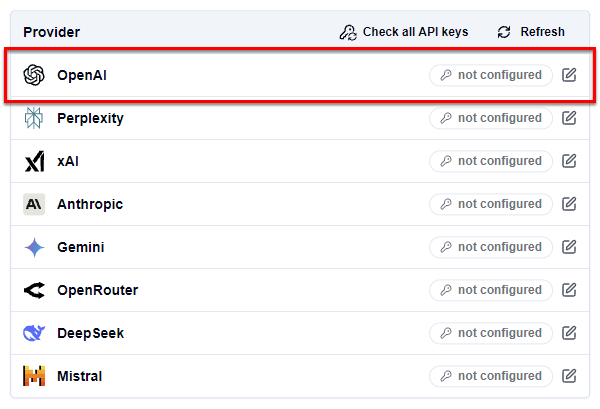
-
Set the API key:
-
In the text field, enter the key.
-
Click Check to verify that the key is valid.
-
Click Save.
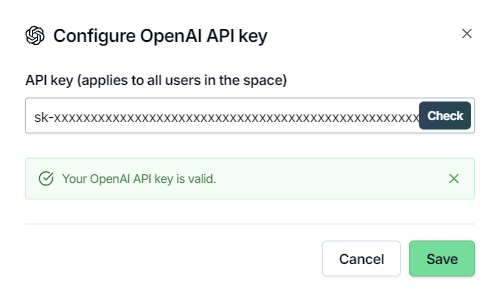
-
You have set the API key. You can now use any model available with the key in GPT for Sheets.
Check API keys
You can verify whether the API keys you have set are valid.
Check all API keys at once
-
Sign in to the GPT for Work dashboard with your Google account.
-
In the sidebar, select AI provider keys.
-
Click Check all API keys.
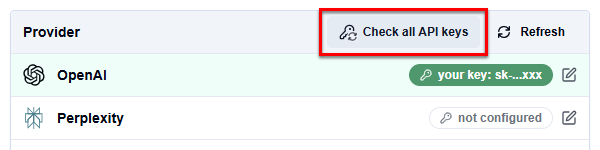
The page displays a warning for each key that is invalid.
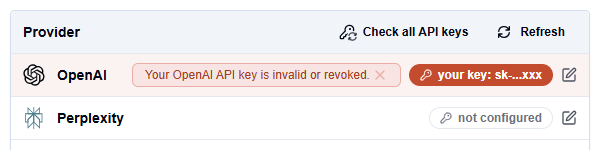
If a key is invalid, create a new key and replace the invalid value with the new one.
Check a specific API key
-
Sign in to the GPT for Work dashboard with your Google account.
-
In the sidebar, select AI provider keys.
-
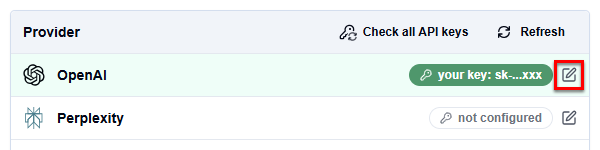
Click the edit icon for the key you want to check.
-
Click Check.
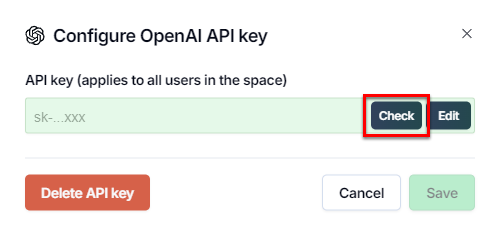
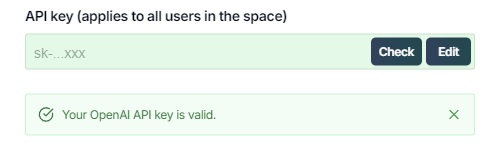
The UI displays a message indicating whether the key is valid or invalid.
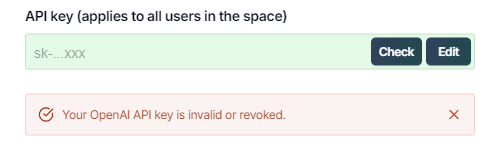
If the key is invalid, create a new key and replace the invalid value with the new one.
Troubleshoot OpenAI API keys
If your API key is not working, check on the OpenAI Platform that the key's permissions are not restricted. The following permissions are required:
| Permission | Description |
|---|---|
| List models | List all available models. |
| Model capabilities | Use model capabilities, such as chat completion. |
| Fine-tuning | Connect OpenAI fine-tuned models to Google Sheets. |
What's next
-
Select a provider-connected model: