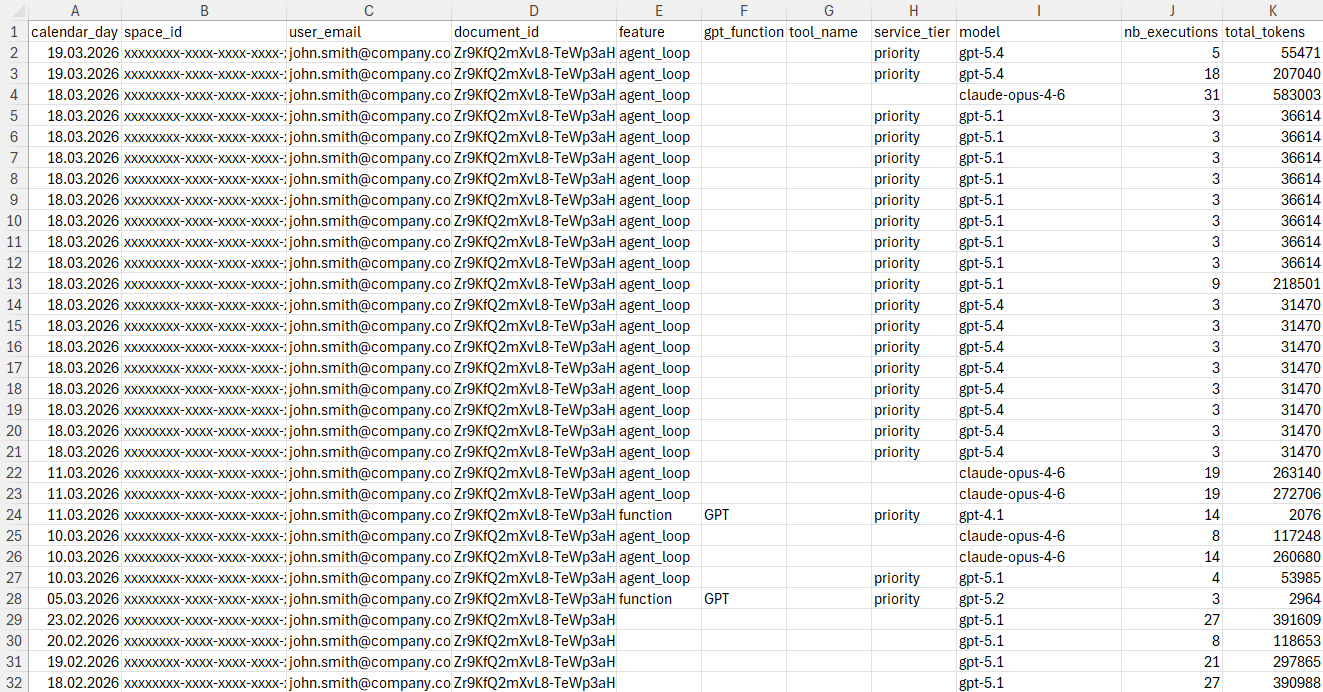
Download usage reports
As a space owner or admin, you can generate and download CSV-format usage reports for your space. You can select a predefined time range or define a custom time range for a report. The reports provide detailed per-user information about feature and model usage, token consumption, and credit consumption.
Prerequisites
You are the owner or an admin of the space.
 Google
 Microsoft
-
Sign in to the GPT for Work dashboard with your Google account.
-
In the sidebar, select Usage.
-
Select the time range for which you want to generate the report.
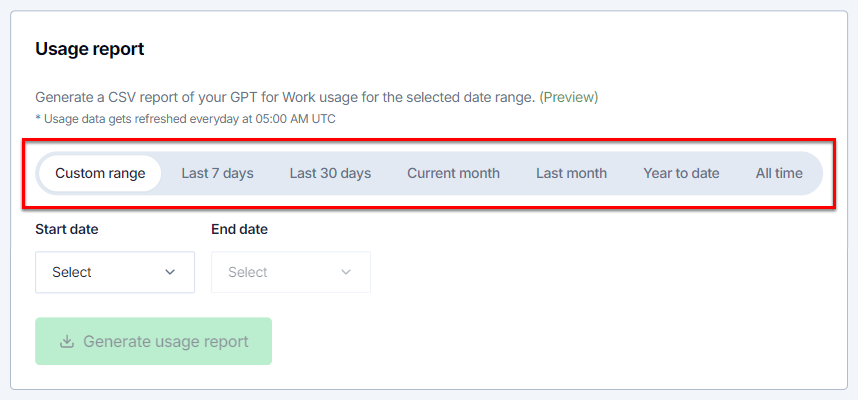
If you want to define a custom time range:
-
Select Custom range.
-
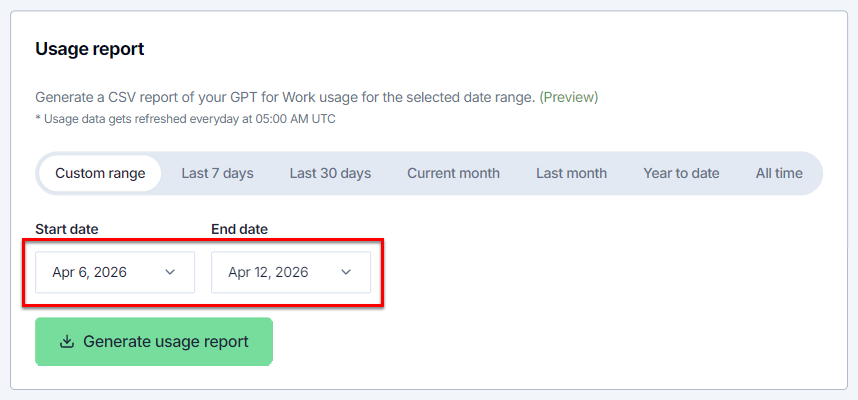
Select Start date.
-
Select End date.
The range is inclusive, so the report will include usage data from both the start date and end date.
-
-
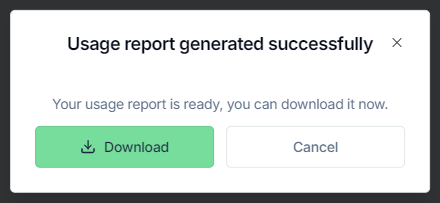
Click Generate usage report. The dashboard generates the report for the selected time range.
-
Click Download. Your browser downloads the CSV file to your computer.
-
Sign in to the GPT for Work dashboard with your Microsoft account.
-
In the sidebar, select Usage.
-
Select the time range for which you want to generate the report.
If you want to define a custom time range:
-
Select Custom range.
-
Select Start date.
-
Select End date.
The range is inclusive, so the report will include usage data from both the start date and end date.
-
-
Click Generate usage report. The dashboard generates the report for the selected time range.
-
Click Download. Your browser downloads the CSV file to your computer.
You've generated and downloaded the usage report. You can now view it on your computer.