Manage models for your space
As a space owner or admin, you can control which AI models are available to the users of your space. This allows you to customize model access for your team and control costs.
These settings apply to GPT for Sheets, GPT for Excel, and GPT for Word. You cannot enable and disable models or otherwise control model access for GPT for Docs (apart from setting API keys).
Prerequisites
You are the owner or an admin of the space.
Set the default Agent model
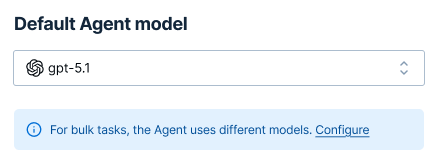
You can set the default Agent model for all users in your space. You can only select enabled Agent models.
 Google
 Microsoft
-
Sign in to the GPT for Work dashboard with your Google account.
-
In the sidebar, select Agent models.
-
In the Default Agent model dropdown, select the default Agent model for your space.
 info
infoTo select an Agent model with an API key, you must first set an API key for your space.
-
Sign in to the GPT for Work dashboard with your Microsoft account.
-
In the sidebar, select Agent models.
-
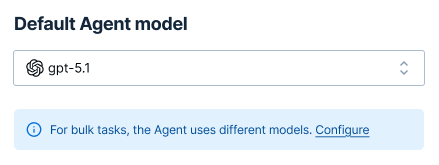
In the Default Agent model dropdown, select the default Agent model for your space.
 info
infoTo select an Agent model with an API key, you must first set an API key for your space.
The Agent now uses the selected default Agent model for new users in the space. Users can override this default from the model switcher in the add-on sidebar.
Set the bulk models for the Agent
You can set two bulk models for the Agent:
-
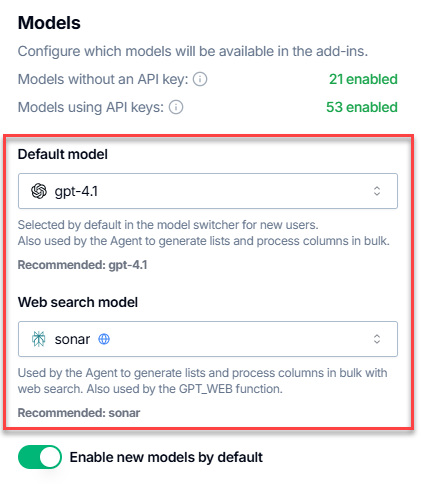
The Default model for bulk tasks is used by the Agent for bulk tasks. For new users in your space, this model is also selected by default in the bulk tools and GPT functions model switcher.
-
The Default model for web search bulk tasks is used by the Agent for bulk tasks that require web search. This model is also used by the GPT_WEB function.
The models available depend on the models enabled for your space.
- Google
- Microsoft
-
Sign in to the GPT for Work dashboard with your Google account.
-
In the sidebar, select Bulk models.
-
Select the bulk models you want the Agent to use for bulk tasks and web searches.
-
Sign in to the GPT for Work dashboard with your Microsoft account.
-
In the sidebar, select Bulk models.
-
Select the bulk models you want the Agent to use for bulk tasks and web searches.
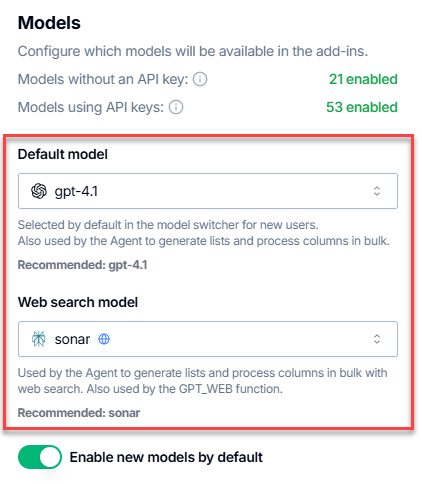
The Agent now uses the selected bulk models for bulk tasks and web searches for all users.
Enable and disable models
You can enable and disable individual models for your space. This includes both Agent models and bulk models. Users can only select enabled models from the model switchers in the add-ons.
- Google
- Microsoft
-
Sign in to the GPT for Work dashboard with your Google account.
-
In the sidebar, select Bulk models or Agent models.
-
In the model switcher, use the toggle next to a model to enable or disable the model.
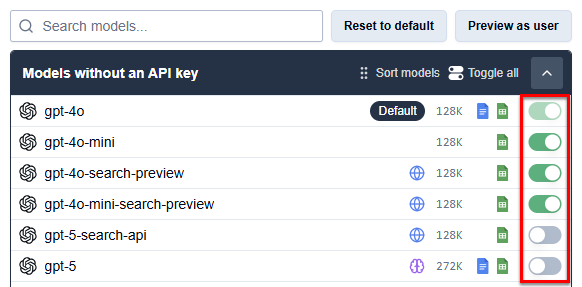
To enable or disable all models without an API key or all models with an API key, click Toggle all in the corresponding section of the model switcher.
-
Sign in to the GPT for Work dashboard with your Microsoft account.
-
In the sidebar, select Bulk models or Agent models.
-
In the model switcher, use the toggle next to a model to enable or disable the model.
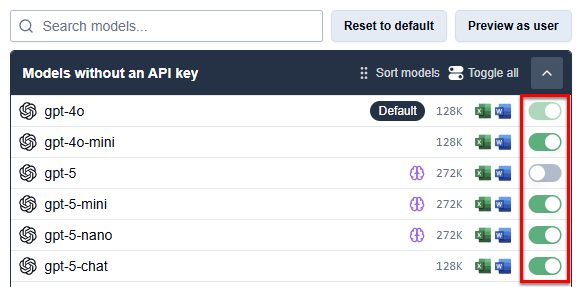
To enable or disable all models without an API key or all models with an API key, click Toggle all in the corresponding section of the model switcher.
What's next
-
Set spending limits for your space and for individual users.