Connect to OpenAI-compatible API endpoints from Excel and Word
GPT for Excel and GPT for Word can connect to any LLM service that provides an OpenAI-compatible API endpoint. You can connect to two main types of services: cloud-based platforms, which provide access to models over the internet with no software installation or setup required on your part, and local servers, which you run on a local machine, such as your own computer or another computer on a local network. Once connected, all models available through the service become available to use in the add-ins.
Here are some popular services that provide an OpenAI-compatible API endpoint:
-
Cloud-based platforms:
-
Local servers:
Prerequisites
You have an endpoint URL and, if needed, an API key for accessing the service.
The endpoint must support the following OpenAI-compatible API resource paths:
/v1/models/v1/completions
You cannot currently use models from OpenAI-compatible API endpoints with the Agent.
Depending on the model you use, the model settings defined in GPT for Work (temperature (creativity), top-p, frequency penalty, and presence penalty) may not work as expected. If you get bad results, try tweaking the settings.
To use models from an OpenAI-compatible API endpoint:
Set up an API endpoint
-
Sign in to the GPT for Work dashboard with your Microsoft account.
-
In the sidebar, select API endpoints.
-
Click OpenAI-compatible endpoints.
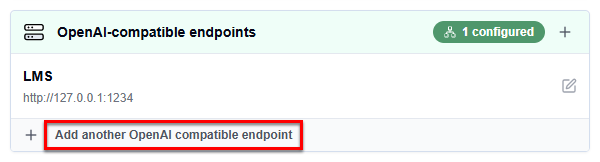
tipIf you already have OpenAI-compatible API endpoints set up, click Add another OpenAI compatible endpoint.
-
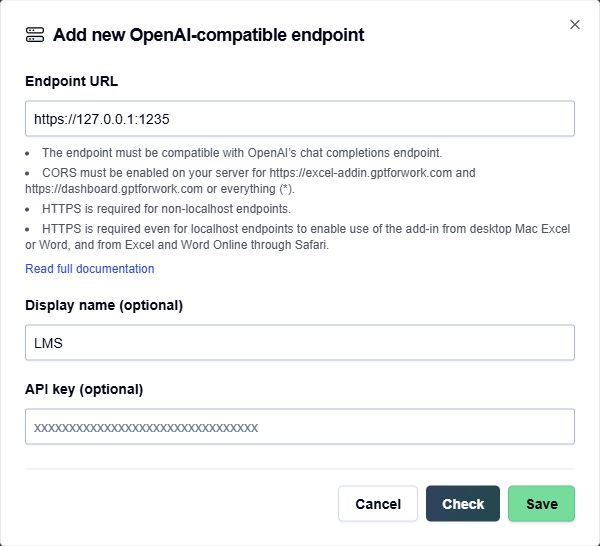
Define the endpoint settings:
-
Endpoint URL: Enter the URL of the service that provides the endpoint.
-
Display name (optional): Enter a short name that is prefixed to the model names in the model switcher. By default, the model names are prefixed with "custom/".
-
API key (optional): If required, enter the API key for accessing the service.
-
-
Click Check to validate the settings and click Save.
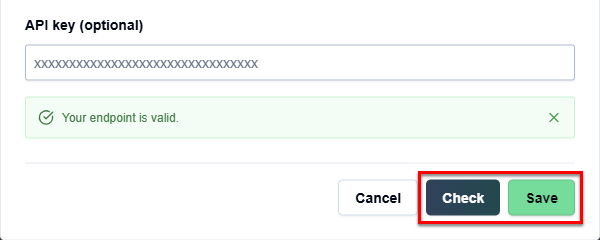
You have set up the OpenAI-compatible API endpoint. You can now use all models available through the endpoint in GPT for Excel and GPT for Word.
To set up another OpenAI-compatible API endpoint, click Add another OpenAI compatible endpoint and repeat steps 4 and 5.
Select a model from the API endpoint
 MS Excel
 MS Word
Open a Microsoft Excel workbook.
On the ribbon, select Home > GPT for Excel Word.
 info
infoIf GPT for Excel Word is not visible on the ribbon, or if it's grayed out, select Home > Add-ins > My Add-ins > GPT for Excel Word. Learn more.
In the sidebar, select Bulk tools and select one of the tools.
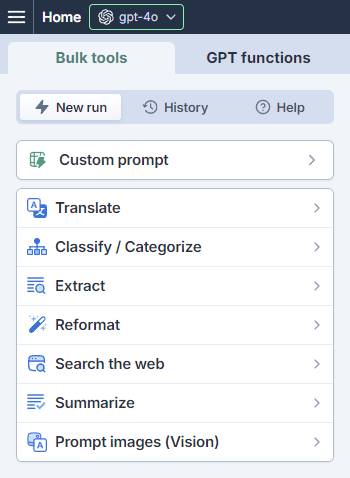
Open the model switcher. You can find the models under Use your API key or endpoint.
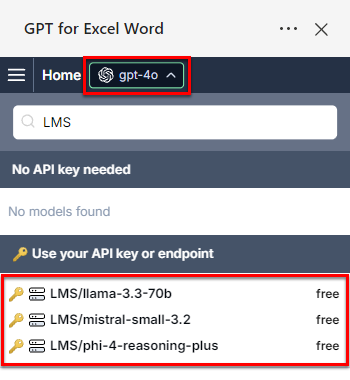 note
noteThe available models depend on the models provided by the service.
Select a model.
GPT for Excel now uses the selected model to generate responses for bulk tools and GPT functions.
Open a Microsoft Word document.
On the ribbon, select Home > GPT for Excel Word.
 info
infoIf GPT for Excel Word is not visible on the ribbon, or if it's grayed out, select Home > Add-ins > My Add-ins > GPT for Excel Word. Learn more.
Open the model switcher. You can find the models under Use your API key or endpoint.
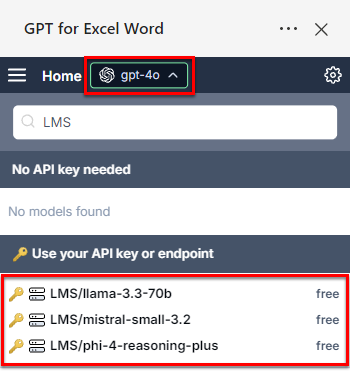 note
noteThe available models depend on the models provided by the service.
Select a model.
GPT for Word now uses the selected model to generate responses.