Connect to custom GPTs from Sheets and Excel
While custom GPTs are only available inside ChatGPT, you can easily replicate a custom GPT as an OpenAI Assistant, which you can then use outside ChatGPT. The only difference between custom GPTs and Assistants is that Assistants cannot search the web.
To use a custom GPT as an OpenAI Assistant:
Create an Assistant based on a custom GPT
-
Log in to ChatGPT.
-
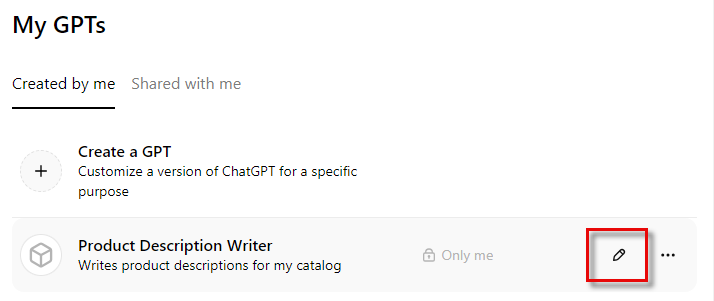
-
Copy the instructions from the custom GPT.
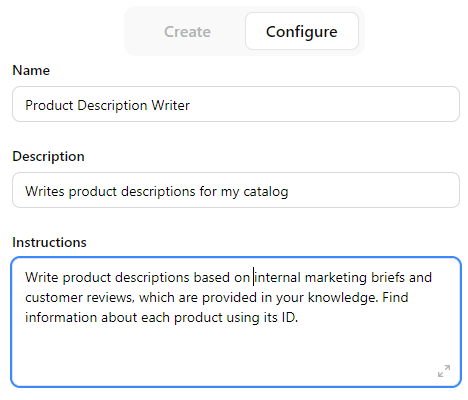
-
Log in to the OpenAI Platform.
-
Open the Assistants settings and click Create.
-
Configure the Assistant:
-
Name: Enter the custom GPT name.
-
System instructions: Enter the custom GPT instructions.
-
Model: Choose an appropriate model, for example
gpt-4o.
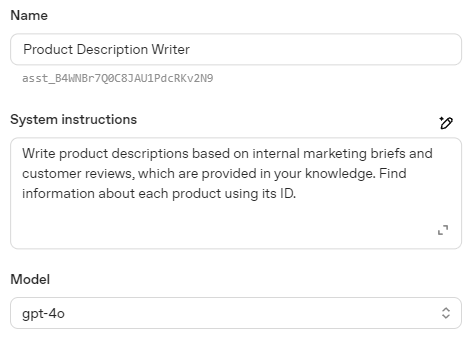
-
-
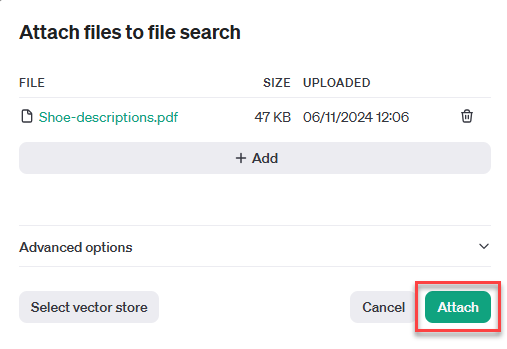
If the custom GPT uses knowledge files, upload the same files for the Assistant:
-
Enable File search and click Files.
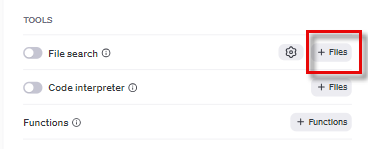
-
In the file attachment screen, select the files and click Attach.
-
You have created an Assistant that replicates the custom GPT. You can now use the Assistant in GPT for Sheets and GPT for Excel.
Set an OpenAI API key for your space
 G Sheets
 MS Excel
-
Create an API key or request an API key from your AI provider platform admin. Learn more.
-
Sign in to the GPT for Work dashboard with your Google account.
-
In the sidebar, select AI provider keys.
-
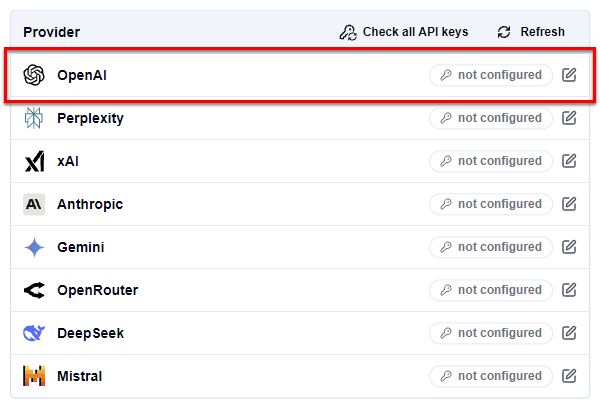
In the AI providers list, click the provider whose API key you want to set.
-
Set the API key:
-
In the text field, enter the key.
-
Click Check to verify that the key is valid.
-
Click Save.

-
-
Create an API key or request an API key from your AI provider platform admin. Learn more.
-
Sign in to the GPT for Work dashboard with your Microsoft account.
-
In the sidebar, select AI provider keys.
-
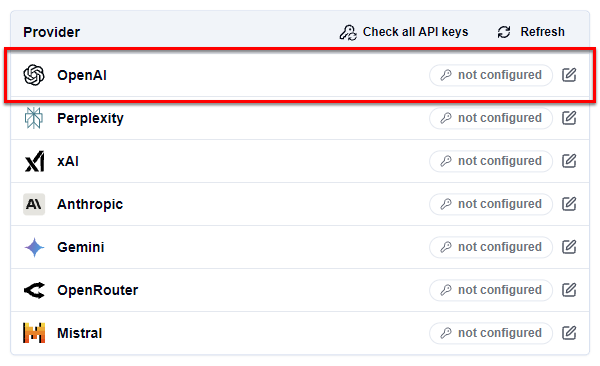
In the AI providers list, click the provider whose API key you want to set.
-
Set the API key:
-
In the text field, enter the key.
-
Click Check to verify that the key is valid.
-
Click Save.
-
Select the OpenAI Assistant
- G Sheets
- MS Excel
Open a Google spreadsheet.
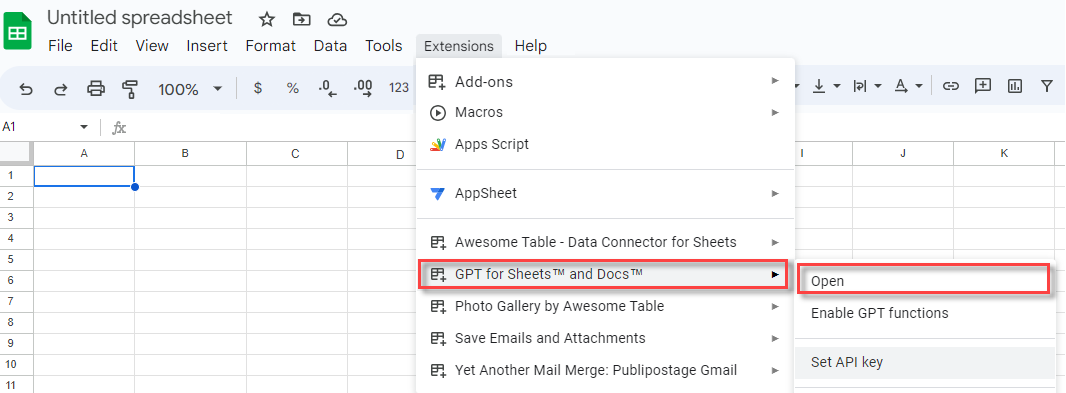
In the menu bar, select Extensions > GPT for Sheets and Docs > Open.
In the sidebar, select Bulk tools and select one of the tools.
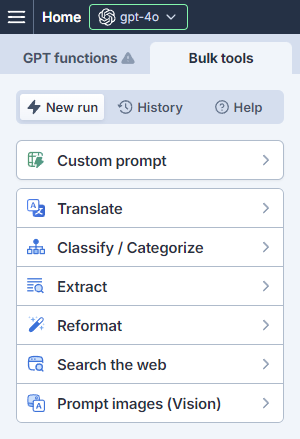
Open the model switcher. You can find the Assistant under Use your API key or endpoints.
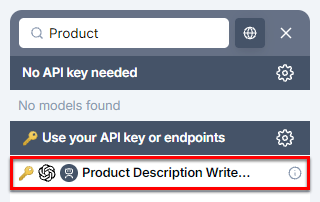
Select the Assistant.
GPT for Sheets now uses the Assistant to generate responses for bulk tools and GPT functions.
Open a Microsoft Excel workbook.
On the ribbon, select Home > GPT for Excel Word.
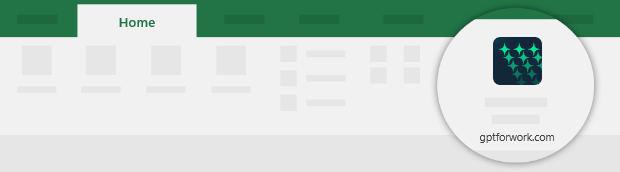 info
infoIf GPT for Excel Word is not visible on the ribbon, or if it's grayed out, select Home > Add-ins > My Add-ins > GPT for Excel Word. Learn more.
In the sidebar, select Bulk tools and select one of the tools.
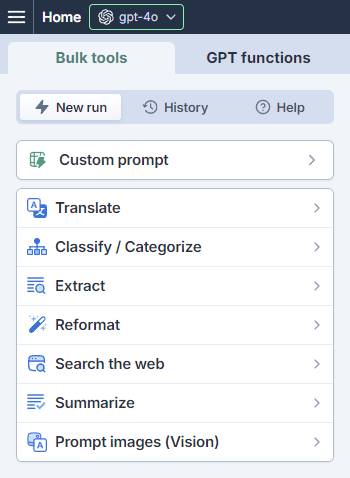
Open the model switcher. You can find the Assistant under Use your API key or endpoint.
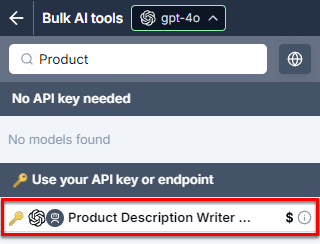
Select the Assistant.
GPT for Excel now uses the Assistant to generate responses for bulk tools and GPT functions.