Business applications for spreadsheets
The Agent in GPT for Sheets and GPT for Excel allows you to tackle common business tasks in bulk with conversational AI. This page provides practical examples of how to use the Agent across different business applications.
How to use the Agent examples
To try out the use cases in GPT for Sheets or GPT for Excel, use the built-in examples from the add-on sidebar.
 G Sheets
 MS Excel
-
Create a new spreadsheet.
-
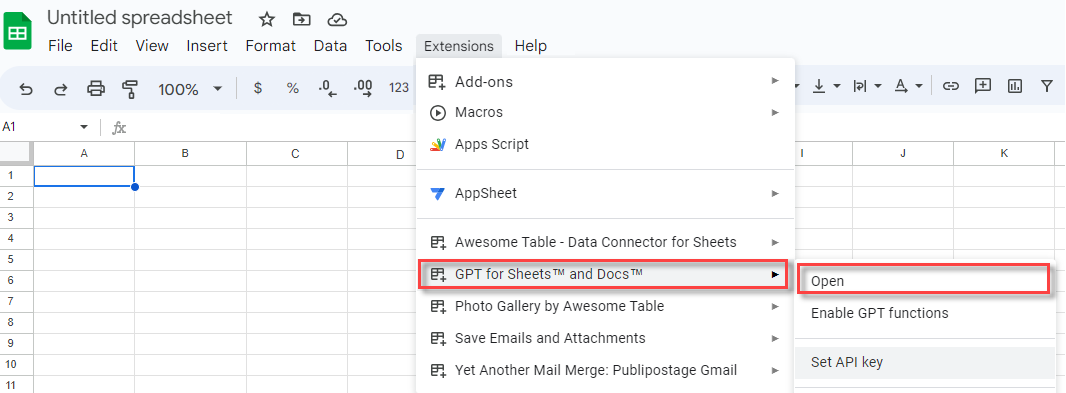
In the menu bar, select Extensions > GPT for Sheets and Docs > Open.
-
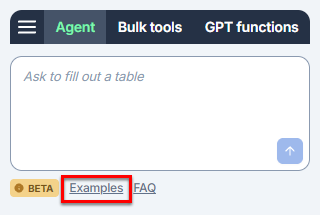
In the sidebar, click Examples and select the example you want to try out.
-
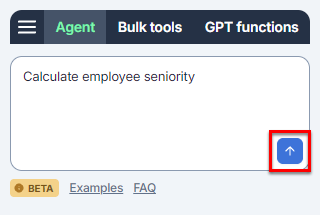
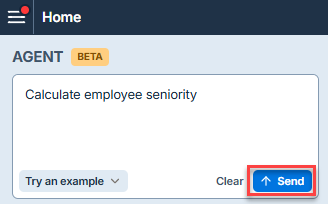
Click the send button to start the example.
The following video shows the entire process.
-
Create a new blank workbook.
-
On the ribbon, select Home > GPT for Excel Word.
 info
infoIf GPT for Excel Word is not visible on the ribbon, or if it's grayed out, select Home > Add-ins > My Add-ins > GPT for Excel Word. Learn more.
-
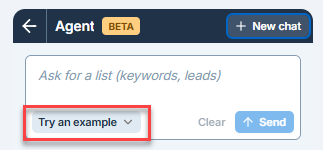
In the sidebar, click Examples and select the example you want to try out.
-
Click the send button to start the example.
The following video shows the entire process.
Product management
E-commerce
Use the Agent to generate product descriptions, product listings, and other content for your e-commerce website.
In this example, the Agent is used to generate a title and description for the products in column A, then categorize them and extract the main features.
- G Sheets
- MS Excel
Data prep (inventory)
Use the Agent to prepare your data for analysis or reporting. This can include cleaning, transforming, or formatting your data to make it more useful for your purposes.
- G Sheets
- MS Excel
SEO
Translate to multiple languages
Use the Agent to translate spreadsheet content to multiple languages in bulk. You can provide specific instructions for the translation, and even use a glossary stored in another sheet to have the translation follow your brand's terminology.
In this example, the Agent is used to translate the content of column A to the languages provided in row 1.
- G Sheets
- MS Excel
SEO (h1, metas, FAQs)
Use the Agent to generate SEO-friendly content for your website. Bulk-generate meta titles and descriptions, headers, FAQs, image alt texts, and more.
In this example, the Agent is used to generate titles and descriptions for car spare parts, then generate FAQs about them.
- G Sheets
- MS Excel
Paid ads
Google Shopping (titles & categories)
Use the Agent to generate optimized content for your Google Shopping listings or for other product catalogs or paid ads.
In this example, the Agent is used to improve product titles and assign categories based on the official Google Shopping guidelines.
- G Sheets
- MS Excel
Outbound sales
ICP fitness
Use the Agent to filter your leads and find companies and contacts that match your ideal customer profile, based your own criteria.
In this example, the Agent is used to analyze the leads based on their industry fit, role fit, location, and company size.
- G Sheets
- MS Excel
Market analysis
Market research
Use the Agent to generate market overviews or company profiles in bulk by fetching information from the web.
In this example, the Agent is used to research the companies in column A, and find their website, CEO name, and other information.
- G Sheets
- MS Excel
Customer feedback
Feedback analysis
Use the Agent to categorize, filter, tag and analyze customer feedback and survey responses. This can include sentiment analysis, key topic extraction, brand and product mention identification, and more.
In this example, the Agent is used to translate support tickets to a common language, classify them based on sentiment, and define their relevance to product quality.
- G Sheets
- MS Excel
What's next?
-
Use the Agent in GPT for Sheets or GPT for Excel.
-
Learn about the Agent's product capabilities.