Use images in GPT function prompts in Excel
Use images in your prompts with GPT for Excel and vision models. These models are multimodal and can process both text and images as input.
Don't have image URLs yet? Learn how to host images on Google Drive for AI processing.
Supported image formats: PNG, JPEG, WebP, non-animated GIF
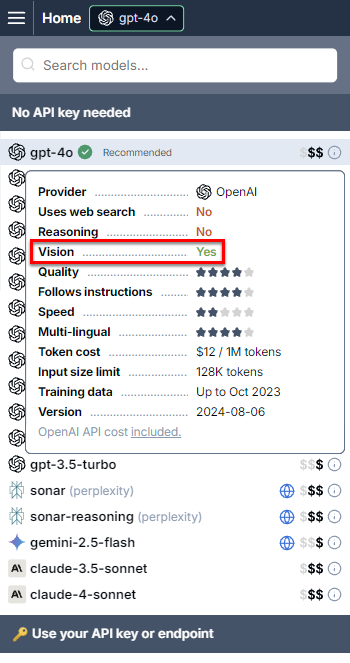
Supported vision models
We recommend using gpt-5.2 to analyze images, but you can use any vision model supported by GPT for Excel.
| Provider | Model | Without API key | With API key |
|---|---|---|---|
 OpenAI OpenAI | gpt-4.1 | Yes | Yes |
| OpenAI | gpt-4.1-mini | Yes | Yes |
| OpenAI | gpt-4.1-nano | Yes | Yes |
| OpenAI | gpt-4o | Yes | Yes |
| OpenAI | gpt-5 | Yes | Yes |
| OpenAI | gpt-5-chat | Yes | Yes |
| OpenAI | gpt-5-mini | Yes | Yes |
| OpenAI | gpt-5-nano | Yes | Yes |
| OpenAI | gpt-5.1 | Yes | Yes |
| OpenAI | gpt-5.2 | Yes | Yes |
| OpenAI | gpt-5.4 | Yes | Yes |
| OpenAI | gpt-5.4-mini | Yes | Yes |
| OpenAI | gpt-5.4-nano | Yes | Yes |
| OpenAI | o1 | Yes | Yes |
| OpenAI | o3 | Yes | Yes |
| OpenAI | o4-mini | Yes | Yes |
 Anthropic Anthropic | claude-4-6-sonnet | Yes | Yes |
| Anthropic | claude-4-sonnet | Yes | Yes |
| Anthropic | claude-4.1-opus | No | Yes |
| Anthropic | claude-4.5-haiku | Yes | Yes |
| Anthropic | claude-4.5-opus | Yes | Yes |
| Anthropic | claude-4.5-sonnet | Yes | Yes |
| Anthropic | claude-4.6-opus | Yes | Yes |
 Mistral Mistral | mistral-medium | No | Yes |
 xAI xAI | grok-4-1-fast | No | Yes |
| xAI | grok-4-1-fast-non-reasoning | No | Yes |
Prompt images
Use the GPT_VISION function to describe or analyze images in individual cells.
Using the model switcher
-
In the sidebar, select GPT functions.
-
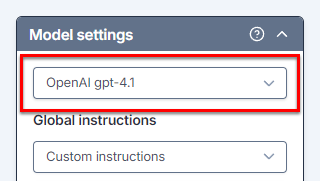
Expand Model settings and open the model switcher.
-
Select a vision model.
-
In the workbook, select a cell and write your formula:
=GPT_VISION("Extract the coffee brand from this image. Normalize the brand name to title case.",C9)
The formula uses the vision model selected in the model switcher.
For instructions on how to write formulas with the GPT_VISION function and set the image resolution, see the GPT_VISION reference.
Specifying the model in the formula
-
In the workbook, select a cell and write your formula, specifying a vision model directly in the formula:
=GPT_VISION("Extract the coffee brand from this image. Normalize the brand name to title case.",C9, , , "gpt-4.1")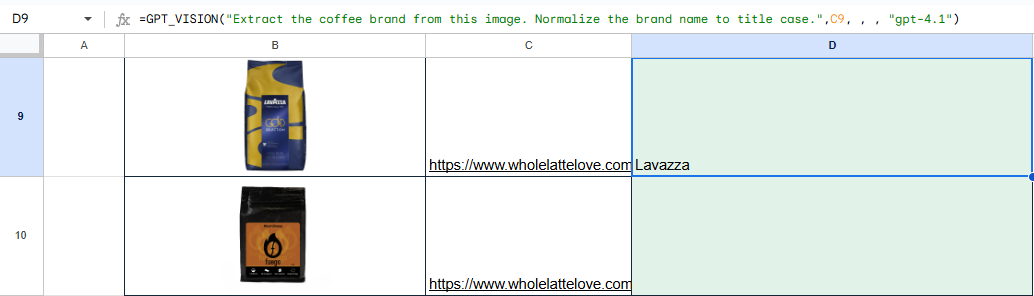
The formula uses the vision model regardless of what's currently selected in the model switcher.
For instructions on how to write formulas with the GPT_VISION function and set the image resolution, see the GPT_VISION reference.
Host images on Google Drive for AI processing
To process an image in GPT for Excel, you need the direct URL of the image and the URL must be publicly accessible.
To host an image on Google Drive so that GPT for Excel can access and process it:
-
Upload the image to Google Drive.
-
Share the image publicly using the Anyone with the link option. For more information, see Google Drive Help.
tipTo prevent other users from commenting or editing the image, set the access role to Viewer.
-
Copy the link.
-
Get the image file ID from the link URL, and build the following new URL with the ID:
https://drive.google.com/uc?id=<image-file-id>For example:
You now have a direct image URL that you can access and process in GPT for Excel.