Configure AI behavior in Docs
Configure model settings to customize how AI behaves in your document.
Model settings are specific to each document.
Select where to insert text
Use the Insert settings to insert the generated text exactly where you want it, highlight generated text, or add the prompt to your document.
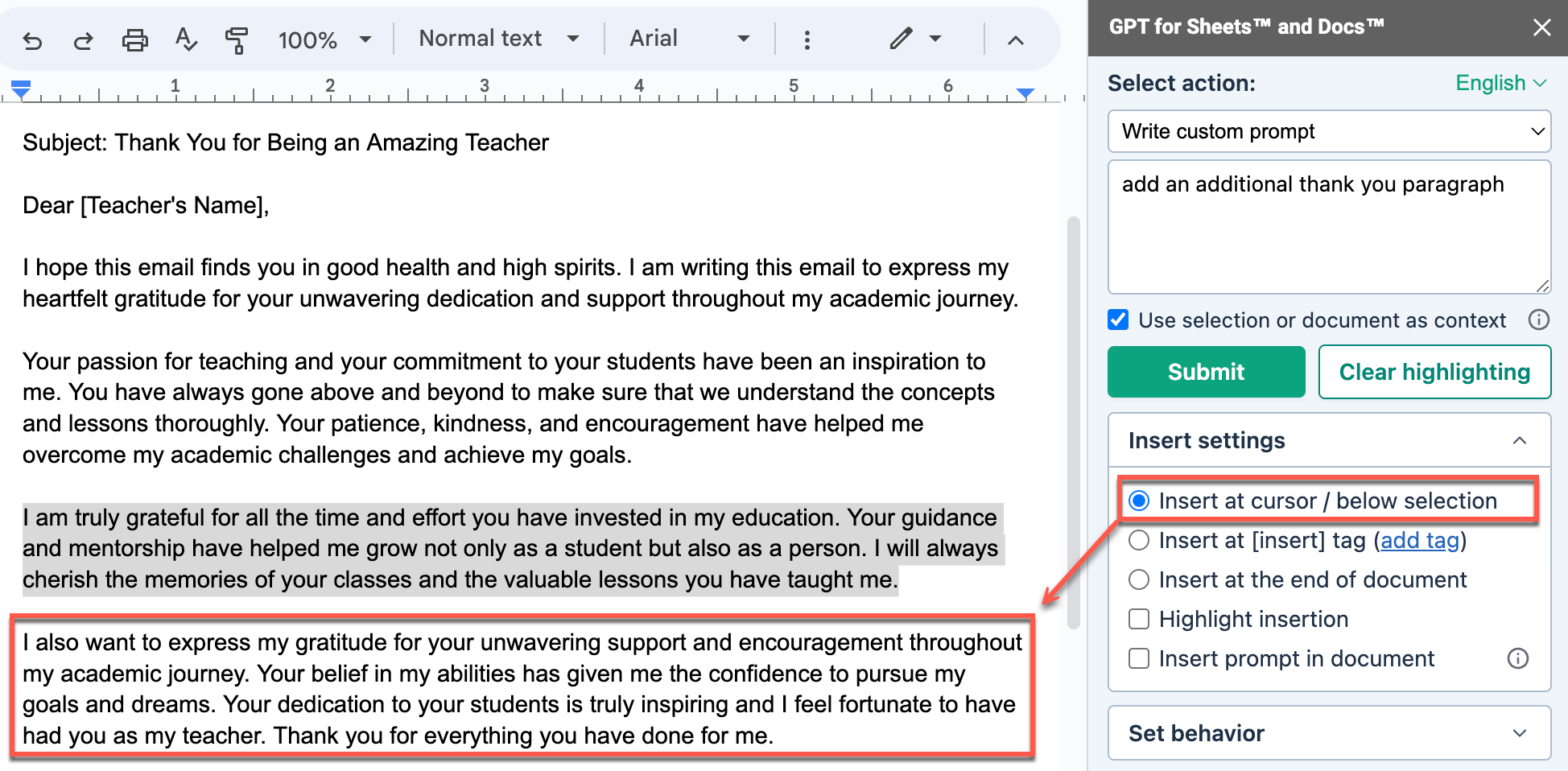
Insert at cursor / below selection
When you select Insert at cursor / below selection, GPT for Docs inserts the text at the cursor position if you did not select any text, or below the selected text.
Insert at [insert] tag
When you select Insert at [insert] tag, GPT for Docs replaces the [insert] tag with the response in your document.
To add a tag, you can:
-
Write [insert] in your document
-
Position the cursor in your document, and click add tag.
![The description response replaced the [insert] tag in the document](/help/article-images/gpt-for-docs/replace-tag.png)
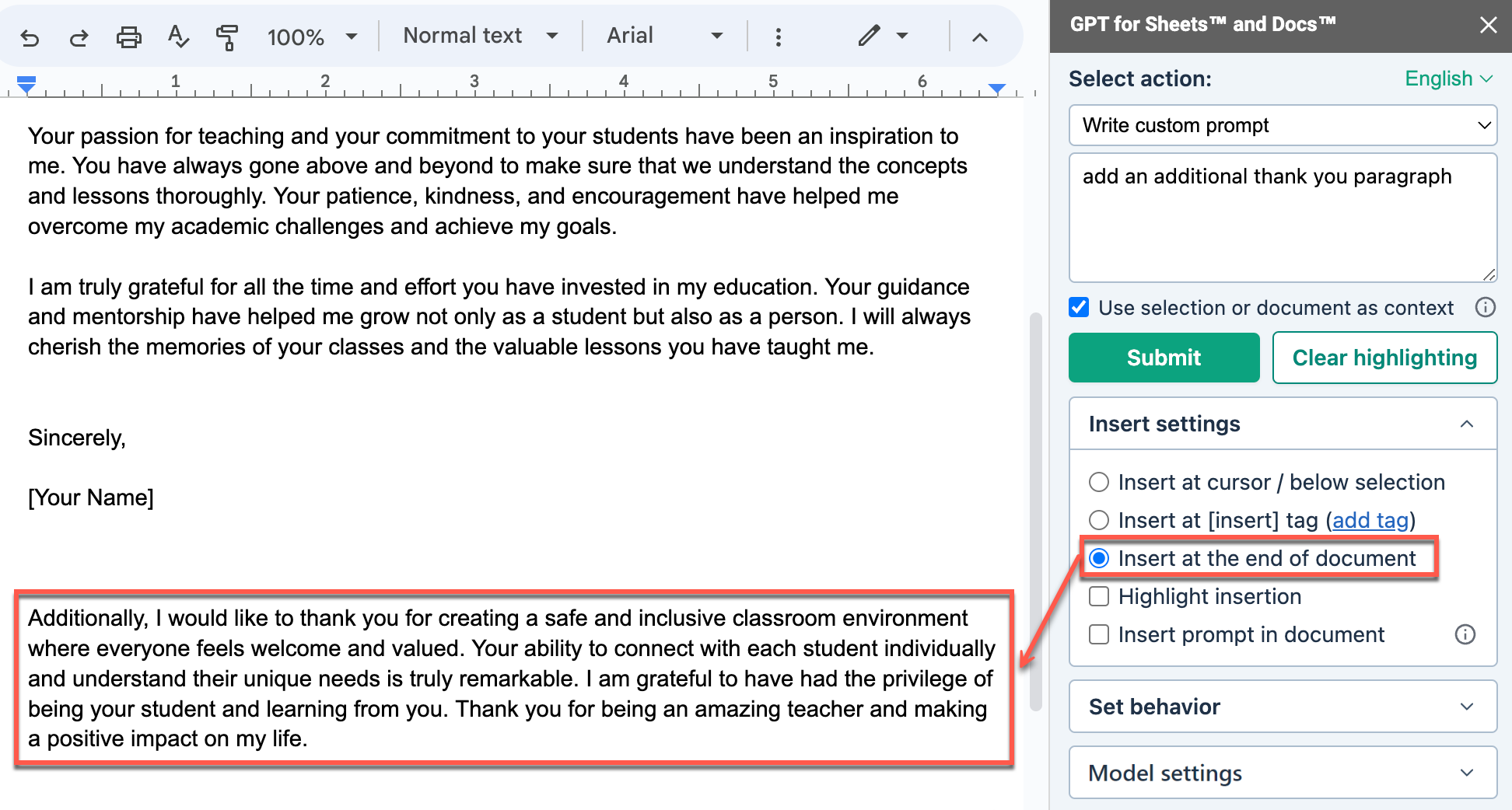
Insert at the end of document
When you select Insert at the end of document, GPT for Docs inserts the response at the end of the document.
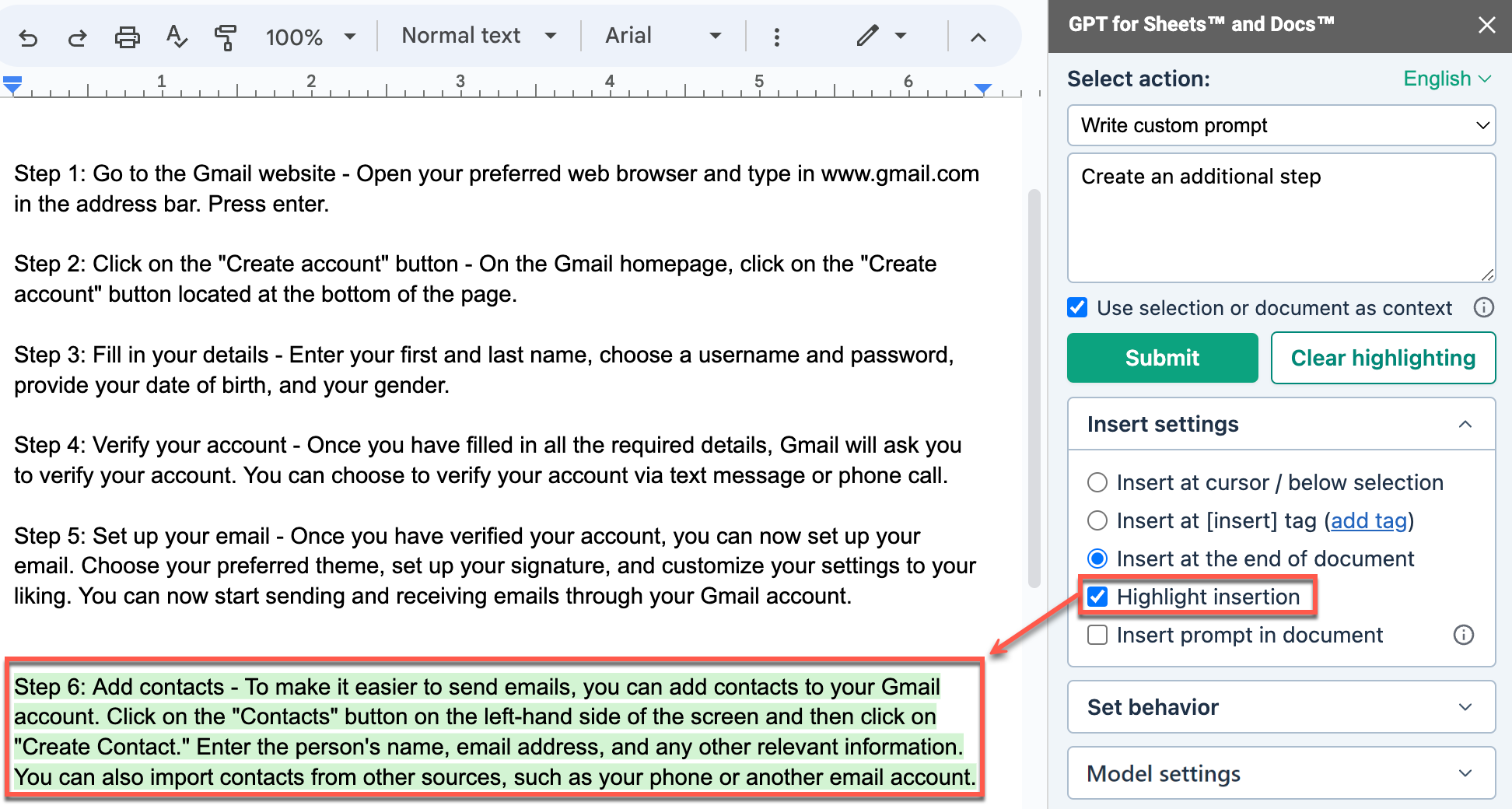
Highlight insertion
When you select Highlight insertion, GPT for Docs highlights the generated response in green in your document.
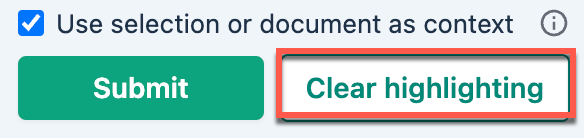
Click the Clear highlighting button to remove the highlights on previous responses.
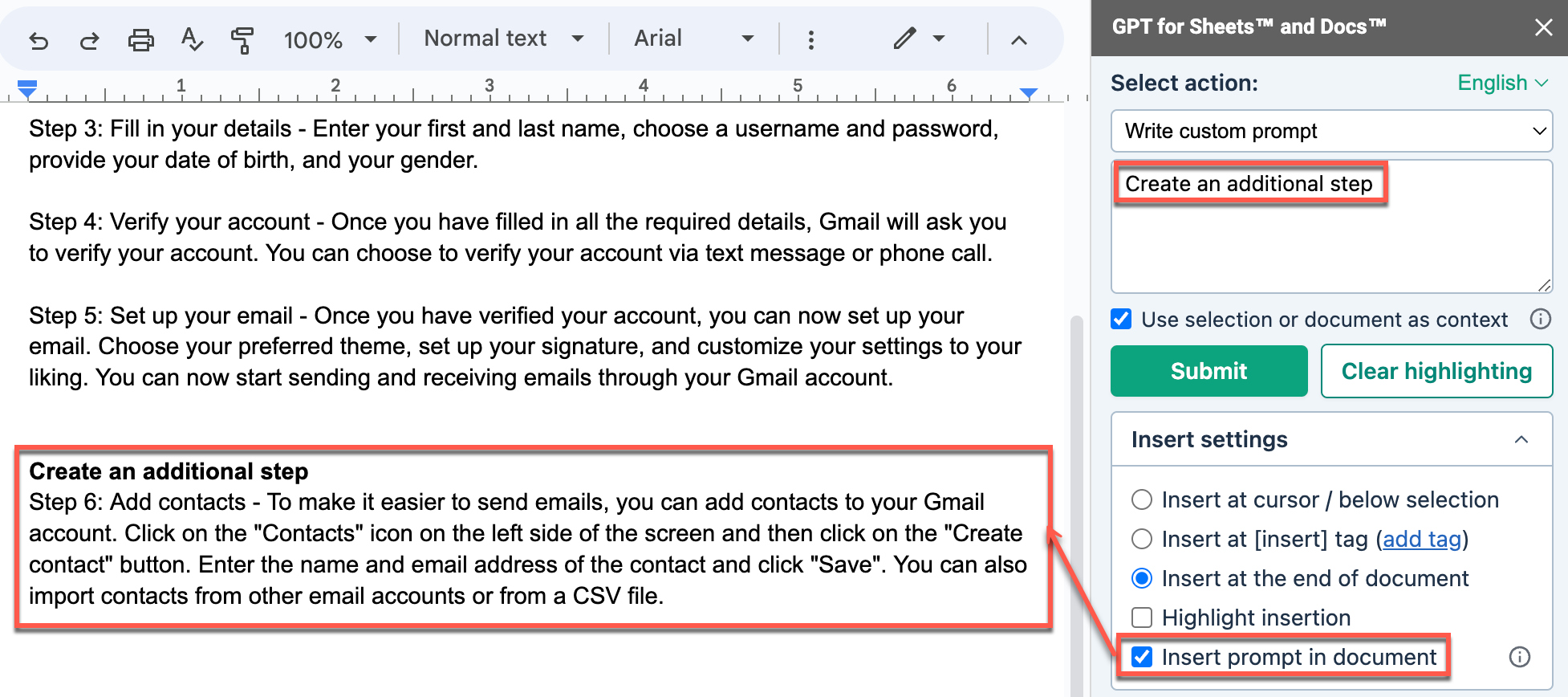
Insert prompt in document
When you select Insert prompt in document, GPT for Docs adds the prompt in bold when inserting the response in the document.
Add custom instructions
Provide custom instructions to specify preferences or requirements that you'd like the AI to consider when generating responses.
-
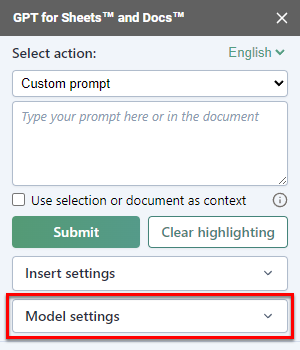
In the GPT for Docs sidebar, expand Model settings.
-
Select the type of instructions you'd like to add and edit them if needed.
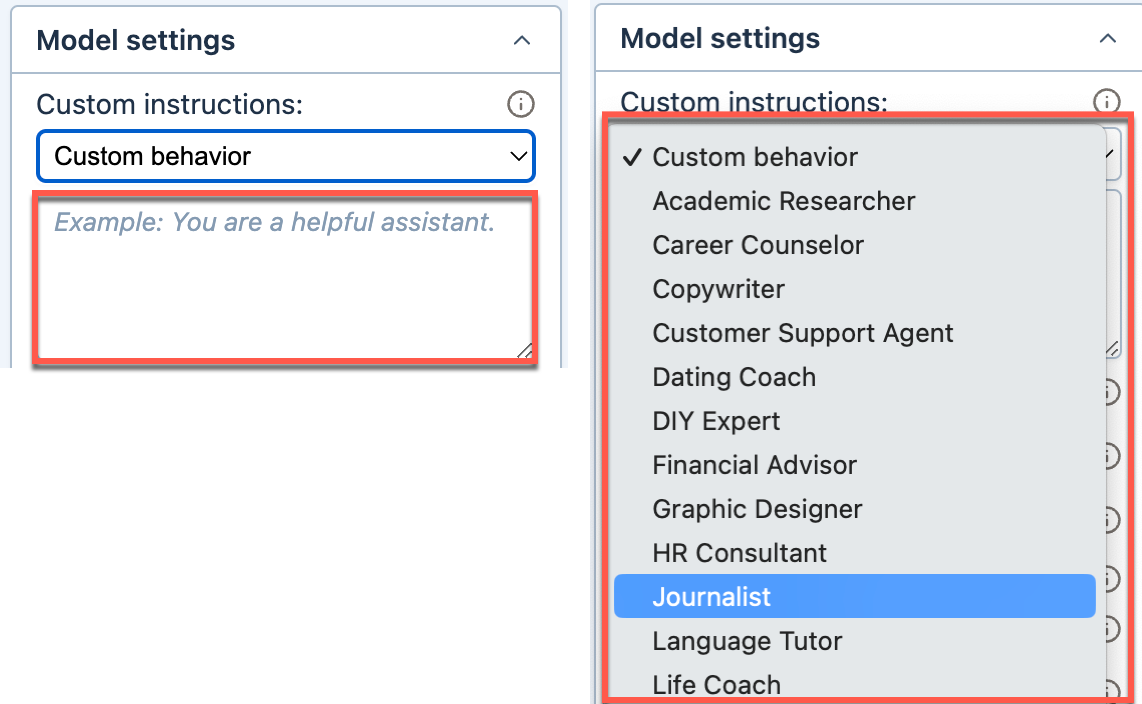
The AI takes the custom instructions into account when generating responses in the current document.
Set the creativity level
Control how creative the AI is by setting the temperature and top-p parameters. The parameters work together to define overall creativity. Lower creativity generates responses that are straightforward and predictable, while higher creativity generates responses that are more random and varied.
For more information about temperature as used by OpenAI to set the creativity level, see our temperature guide.
| Parameter | Description | How to use |
|---|---|---|
Temperature | Controls randomness in the output. |
|
Top P | Controls diversity of word choices. |
|
-
In the GPT for Docs sidebar, expand Model settings.
-
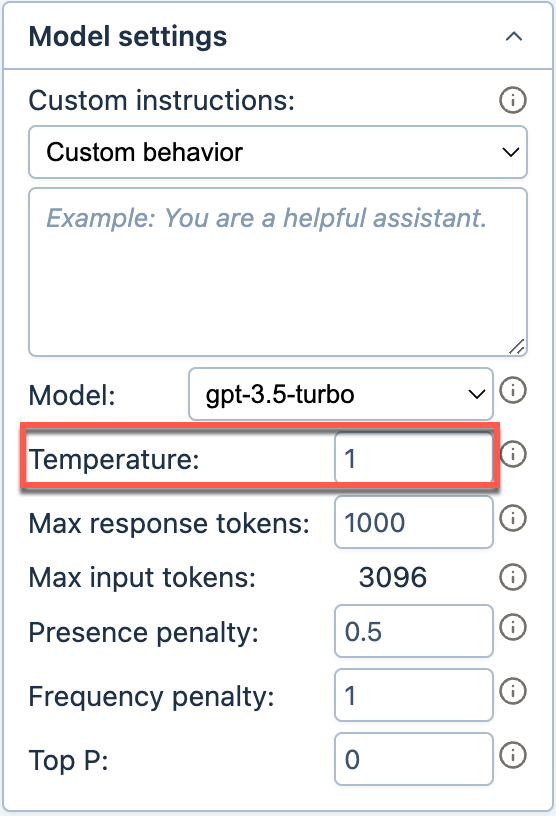
Set Temperature between 0 and 1. You can refer to the following:
-
0: Precise, the model strictly follows the prompt
-
0.5: Neutral, the model is slightly creative
-
1: Creative, the model is very creative
-
-
(Optional) Set Top P between 0 for a focused output and 1 for most creativity.
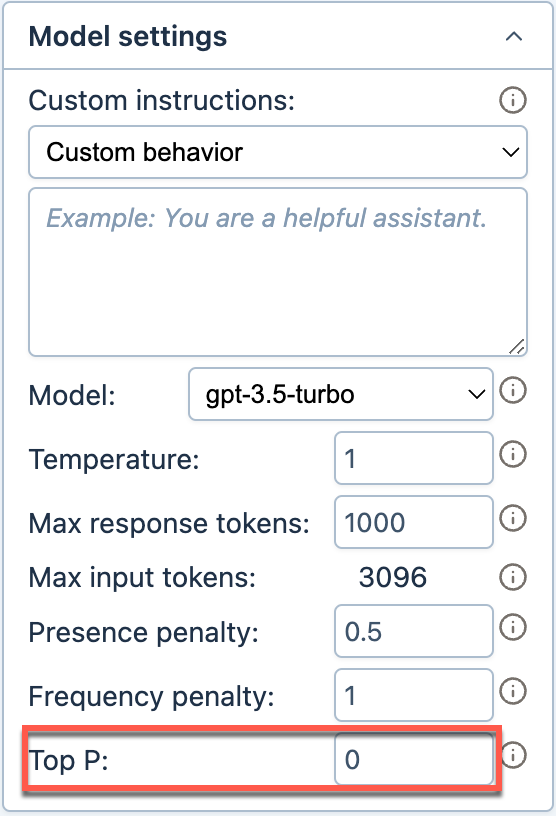
The AI uses the new temperature and top-p values when generating responses in the current document.
Set maximum response size
Set a cut-off limit for your responses (measured in tokens). If the response is larger than this limit, the response is truncated. This helps control cost and speed.
| Term | Definition |
|---|---|
Token | A token is a unit of text, such as a word, subword, punctuation mark, or symbol. Models split all input and output text into tokens for processing. Model providers use tokens as the basic unit for measuring model usage. The total number of tokens in a prompt (input) and the model's response (output) determines your credit consumption. For more information, see Tokens and How credits are consumed. |
Token limit | Token limit is the maximum total number of tokens that can be used in both the input (prompt) and the response (completion) when interacting with a language model. |
-
In the GPT for Docs sidebar, expand Model settings.
-
Enter a value for Max response tokens.
Rule: max response tokens + input tokens ≤ token limit
This means that when you set Max response tokens, you must make sure there is enough space for your input. Your input includes your prompt, custom instructions, context, and elements sent by GPT for Docs with your input (about 100 extra tokens). You can use OpenAI’s official tokenizer to estimate the number of tokens you need in your response.
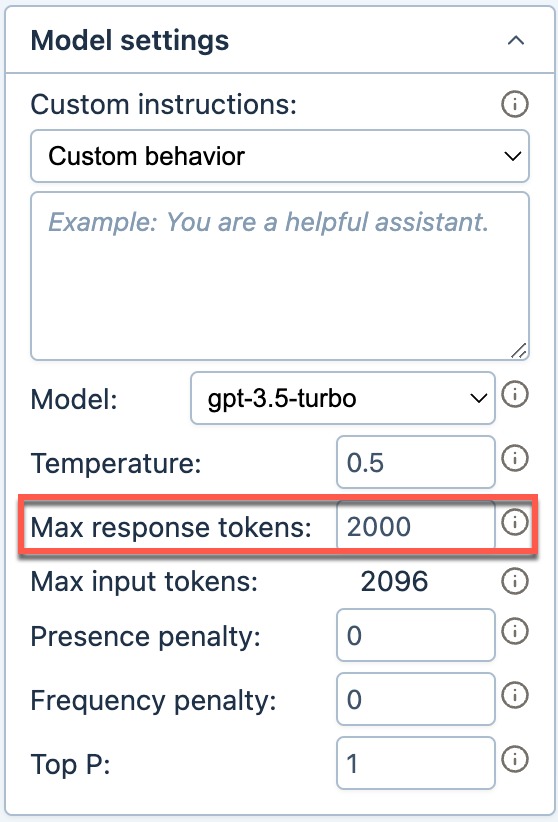
The AI observes the new maximum response size when generating responses in the current document.
Select the prompt language
To get more accurate responses from the AI, define the language in which you write prompts and custom instructions.
-
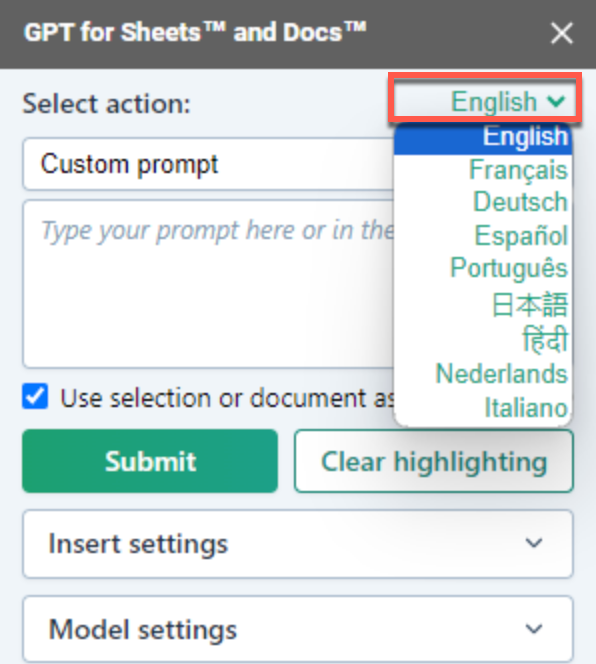
In the GPT for Docs sidebar, click the dropdown located in the upper right corner.
-
Select your prompt language.
The elements in the sidebar that are to be submitted along with your input are now displayed in the selected language.
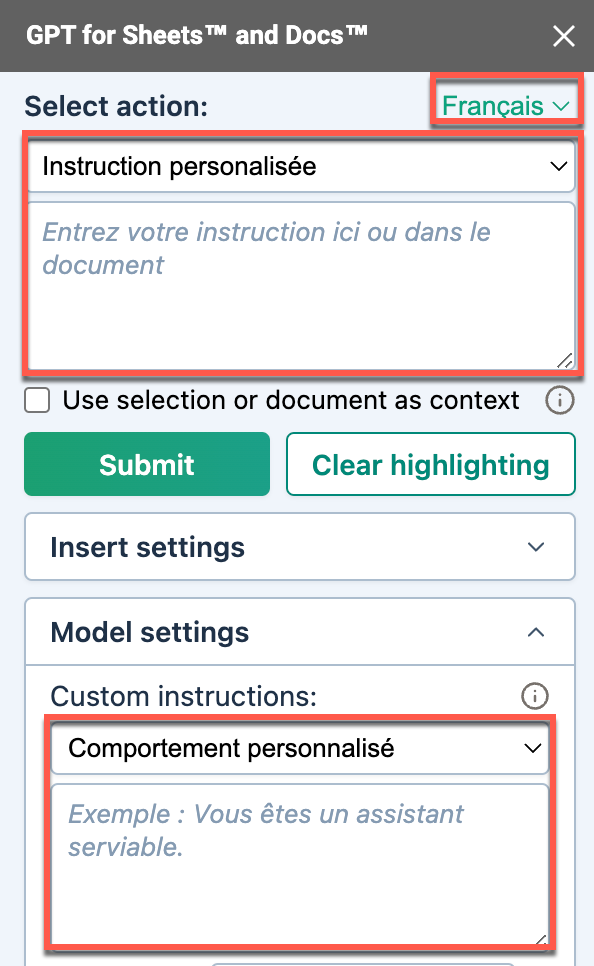
The AI uses the selected language as the default for understanding your prompts and custom instructions.
Reduce AI response repetition with OpenAI models
Set frequency and presence penalties to reduce the tendency of OpenAI and xAI models towards repetition.
| Term | Definition |
|---|---|
Presence penalty | Penalizes new tokens based on whether they appear in the text so far. Higher values encourage the model to use new tokens, that are not penalized. |
Frequency penalty | Penalizes tokens based on their frequency in the text so far. Higher values discourage the model from repeating the same tokens too frequently. |
Token | A token is a unit of text, such as a word, subword, punctuation mark, or symbol. Models split all input and output text into tokens for processing. Model providers use tokens as the basic unit for measuring model usage. The total number of tokens in a prompt (input) and the model's response (output) determines your credit consumption. For more information, see Tokens and How credits are consumed. |
-
In the GPT for Docs sidebar, expand Model settings.
-
Set Presence penalty and Frequency penalty from 0 to 2.
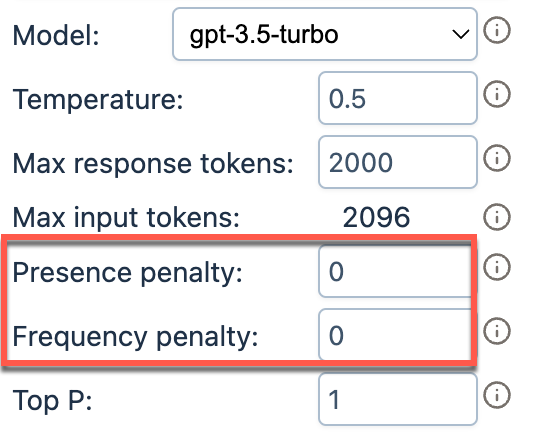
The AI uses the new penalty values when generating responses in the current document.
What's next
-
Select the model that best fits your needs.